

Background
In spring 2026, the data protection authorities in France (CNIL) and Italy (Garante)
published guidelines on the use of tracking pixels in emails. These are
not new laws, but clarifications regarding the existing ePrivacy and GDPR
legal framework.
Tracking pixels in emails access information on the recipient’s device and
are therefore subject to the ePrivacy rules – much like a cookie banner on a website,
a distinction is made between necessary and non-necessary tracking. In the context of HubSpot,
the following applies: email open and click tracking for marketing and sales emails is
considered non-essential and will therefore require separate, informed consent
in the future.
The requirements apply to all senders who send emails to recipients in these
countries – regardless of where their own company is based.
The decisive factor is the location of the recipient, not that of the sender.
New:
HubSpot now offers a centralised solution, which is currently in beta. With this new feature, you can manage email tracking on a per-contact basis using a new consent record for each email address in your CRM. Email tracking is then determined by the contact’s consent status. HubSpot takes the set status into account at the time of sending and only tracks email addresses of people who have consented to tracking or who are not affected by the new regulations. This means you no longer need to create both a tracked and an untracked version of an email.
Procedure:
You must activate the beta first.
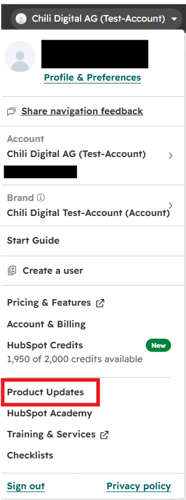
Step 1: Go to your account and click on «Product Updates».
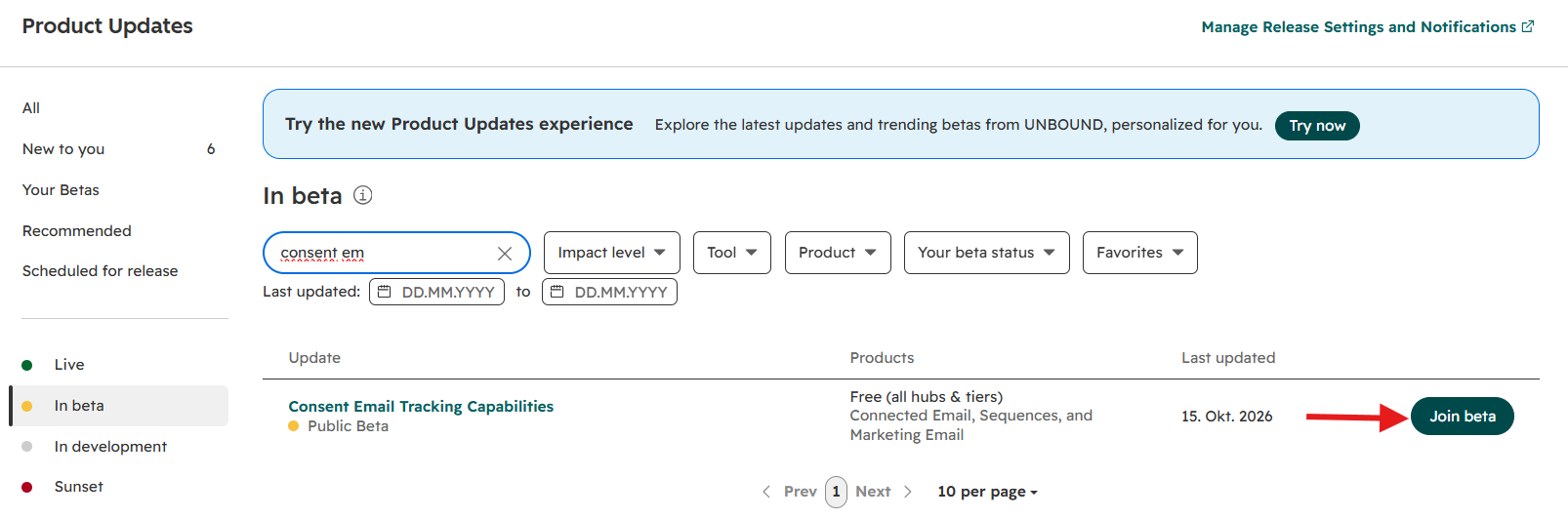
Step 2: Search for «Consent Email Tracking Capabilities» and click on «Join beta».
Now you must set the consent status for existing contacts. You can set the status of contacts manually, via segments or through workflows.
Option 1: Set the status manually or via segments
Step 1: Go to CRM → Contacts / CRM → Segments and select the relevant contact / contacts in the segment.
Step 2: Click on «More» and select «Edit email tracking consent».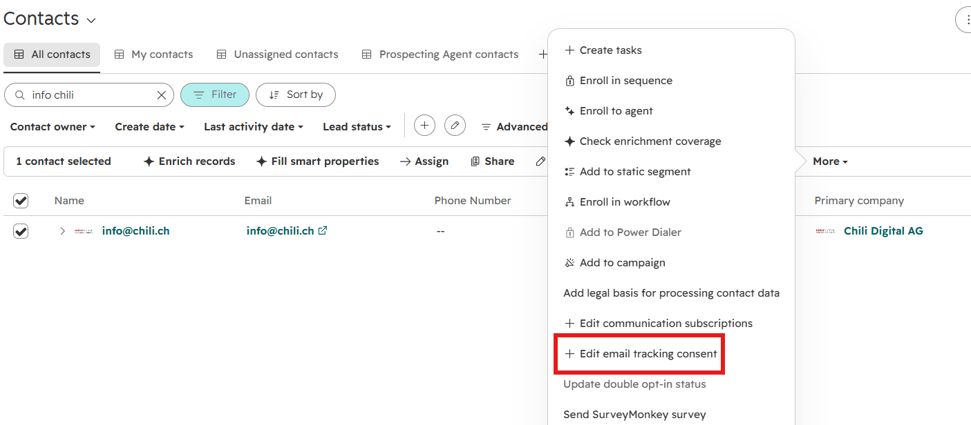 Step 3: You now have 4 options to choose from:
-
Not specified: Default setting; the contact has not given consent to tracking
-
Consent declined: The contact has refused tracking
-
Not applicable : The contact is not affected by the new regulations
- Consent given: The contact has consented to tracking
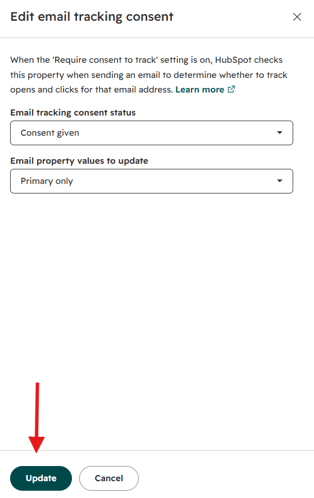
Emails from individuals with the statuses «Not specified» or «Consent declined» are not tracked. Select the desired status.
Step 4: Select whether the status should apply only to the contact’s primary email address or to all email addresses on file, then click «Update».
Step 5: Once you have set the correct status for all your contacts, go to the «Privacy & Consent» section in the settings.
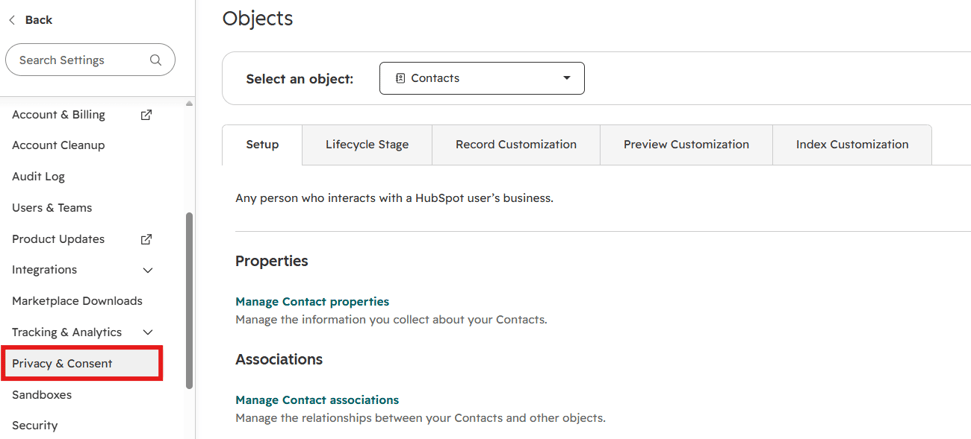
Step 6: Tick the box labelled «Require consent to track emails» to complete the setup.

Once activated, a box asking about tracking will automatically appear on the subscription settings page. Recipients can enable or disable tracking there themselves.
Option 2: Set the status using a workflow (requires Professional or Enterprise)
Step 1: Go to Automation → Workflows and create a contact-based workflow. Decide which contacts should be included by setting a start trigger.
Step 2: Now add the action «Manage email tracking consent» to the workflow.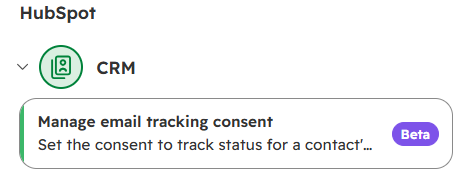
Step 3: Select the contacts you wish to update (enrolled contatc or all associated contacts), the consent status and which email addresses are affected, then click «Save».
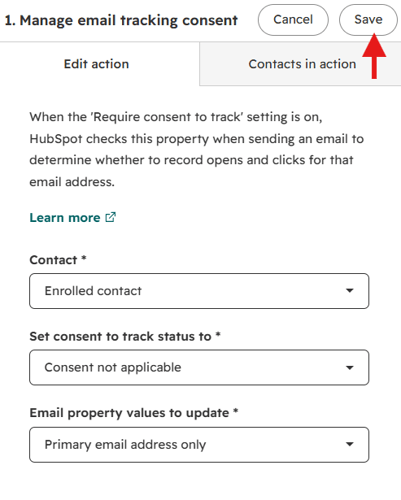
Step 4: Add further actions as required.
Step 5: Activate the workflow.
Step 6: Go to the «Privacy & Consent» section in the settings.
Step 7: Tick the box labelled «Require consent to track emails» to complete the setup.
Once activated, a box asking about tracking will automatically appear on the subscription settings page. Recipients can enable or disable tracking there themselves.
Viewing and managing a contact’s status:
Step 1: Go to Settings → Objects, select the «Contact» object, go to «Record Customization» and click on «Standardansicht (Default View)».
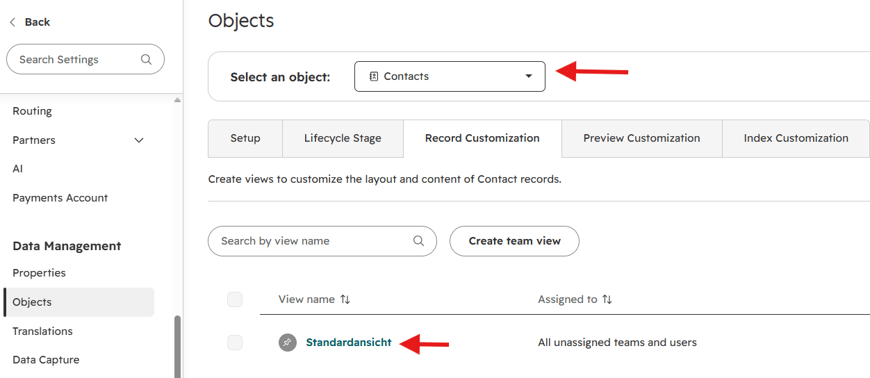
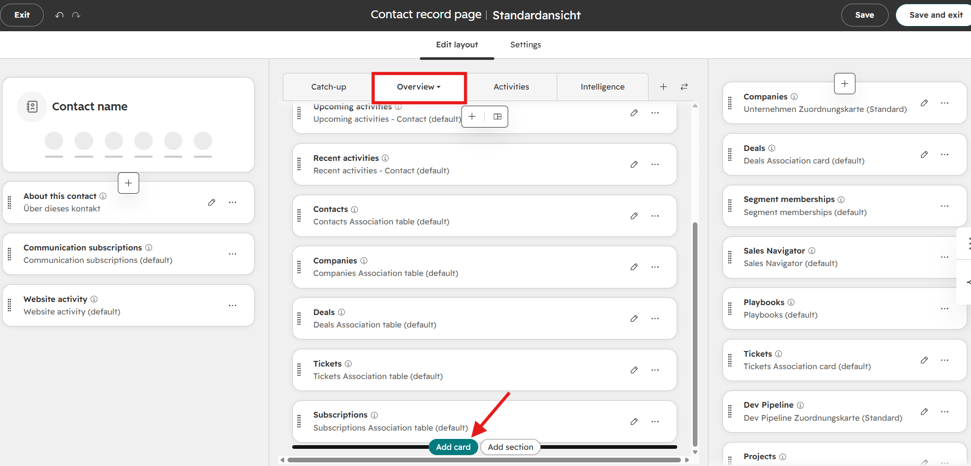
Step 2: Click on «Overview» and then on «Add card».
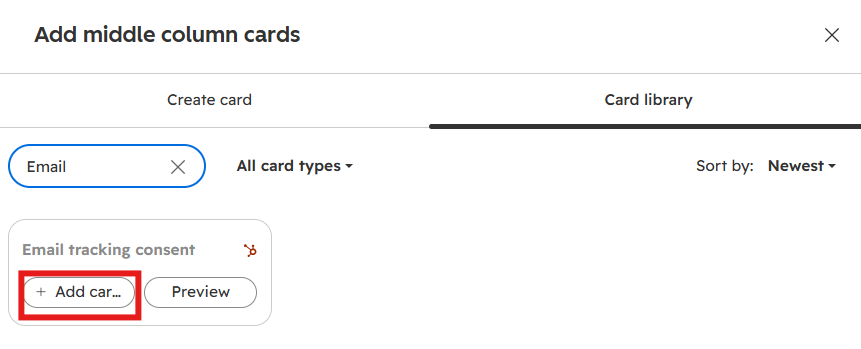
Step 3: Go to the card library, search for «Email tracking consent» and click on «Add card».
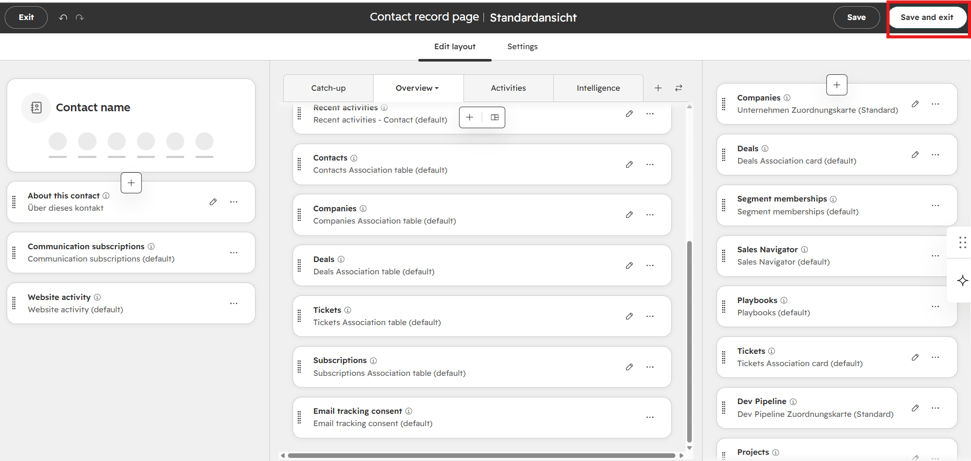
Step 4: To complete the process, click on «Save and exit». You can now view the status for the relevant contact.
Step 5: To manage the status, go to CRM and click on the relevant contact.
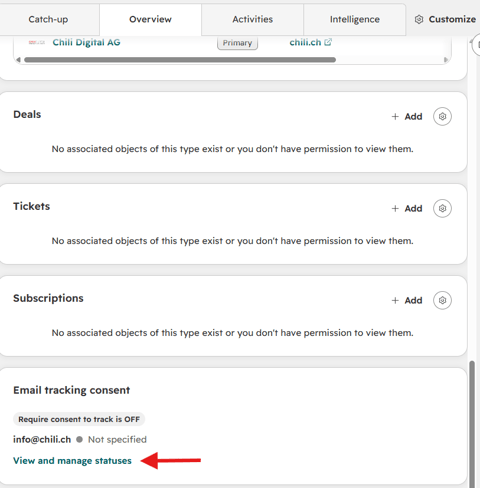
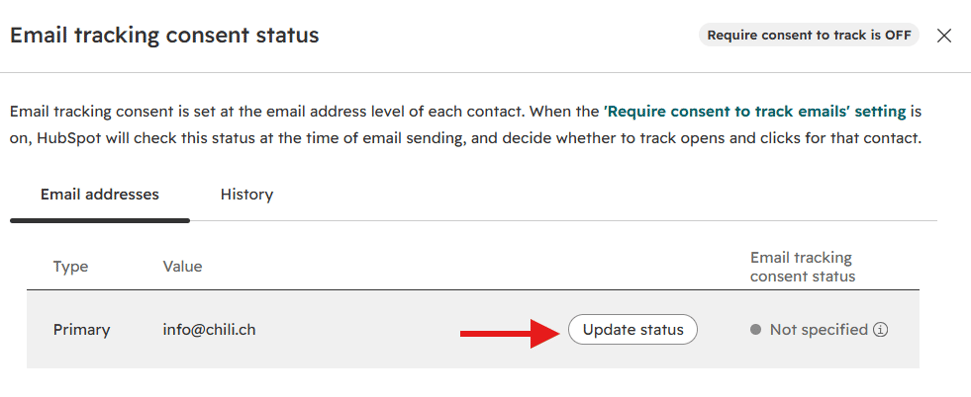
Step 6: Go to the «Overview» tab and, under the «Email tracking consent» section, click on «View and manage statuses».
Step 7: Click on «Update status».
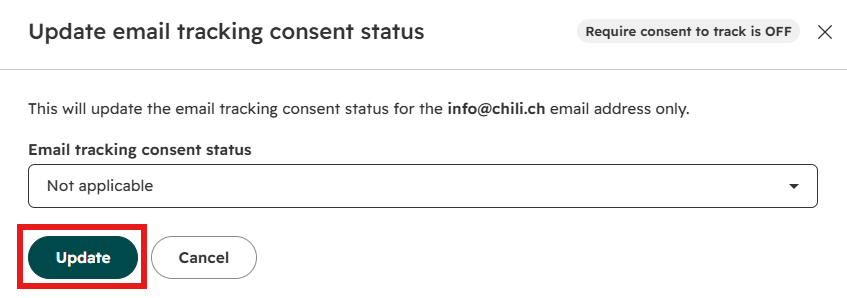
Step 8: Select the desired status and click «Update».
Limitations!
This function is not supported for forms. However, you can add a custom property that requests tracking consent and then use a workflow to update the contact’s consent status.
We’d be happy to help you make the most of the new features in your HubSpot setup – whether from a strategic, technical or operational perspective.